Devices & access
Understand who can use Walldash, add new tablets, and recover access if a device is lost.
On this page
Walldash keeps your home dashboard on its own. Each tablet that opens it is a device with its own access — no Home Assistant login is needed on the tablet.
The first device is in charge
The first device that opens Walldash becomes the owner automatically. There is nothing to type and nothing to find: just open Walldash and you are in.
The owner manages every other device from Setup → Access.
Adding another device
There are two ways to let a new tablet in. Both start from Setup → Access on an owner or admin device.
Approve a waiting device
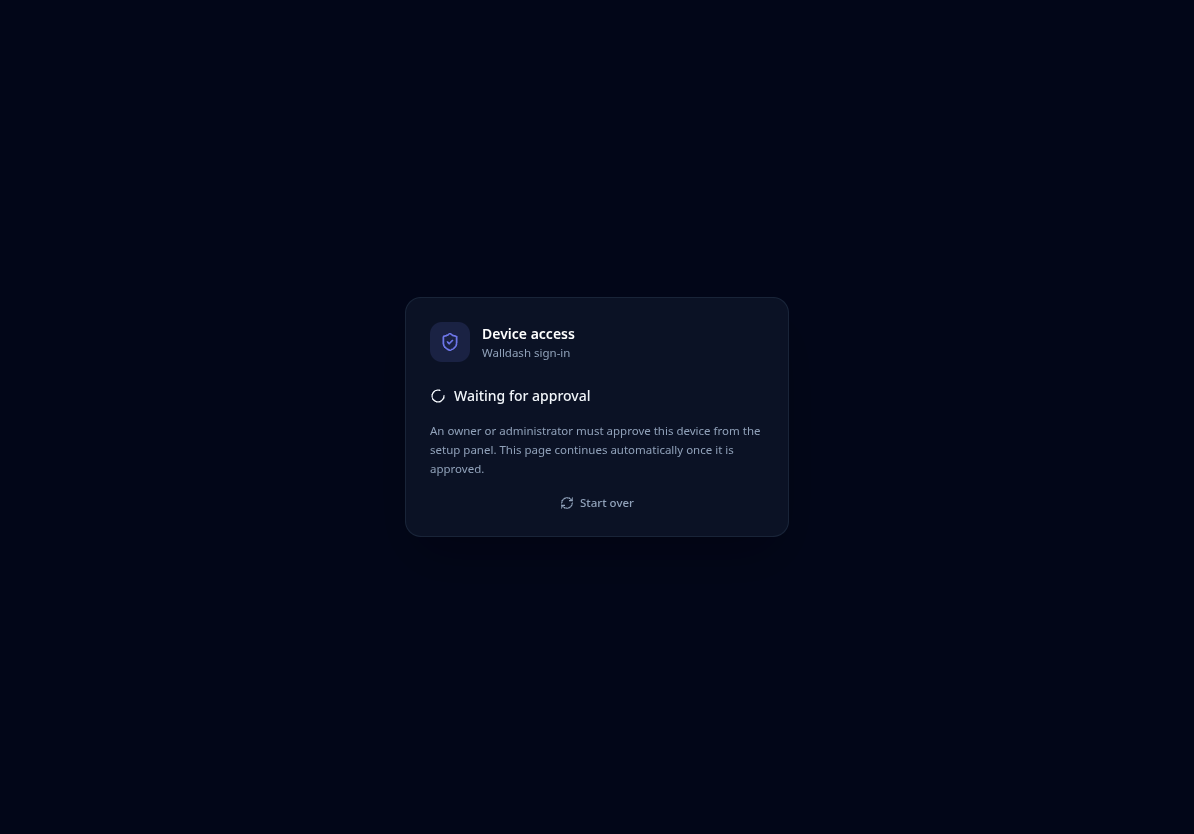
- Open Walldash on the new tablet. It waits on the access screen.
- On the owner or admin device, open Setup → Access.
- Find the device under Pending approvals and choose Approve (or Deny).
- The new tablet is signed in.
Create an invitation
- On the owner or admin device, open Setup → Access.
- Choose Create invitation and pick a role: device or admin.
- Walldash shows a single-use link. Share it with the new device (for example by message).
- Open the link on the new tablet within 15 minutes. It signs that device in.
Each invitation works once and stops working after 15 minutes. Create a new one if it expires.
Roles
| Role | What it can do |
|---|---|
| owner | Everything, including giving the owner role to another device. |
| admin | Manage devices, create invitations, approve waiting devices and revoke access. Admins cannot revoke or rename an owner device. |
| device | Use the dashboard and 3D views only. |
Only the owner can pass on the owner role, and an admin cannot make itself owner. Owner devices are also protected from admins: only an owner can rename or revoke one, and the last remaining owner can never be removed.
Keeping devices signed in
A device stays signed in for 60 days, and renews itself quietly, so you rarely need to do anything. Revoking a device ends its access immediately: its sessions and live connections are closed. After that, it must be approved or invited again.
If the owner device is lost
If the tablet that was the owner is gone, you can make another device the owner:
- In the add-on configuration, turn on the Rescue mode option.
- Restart the add-on.
- Open Walldash on the device that should become the new owner.
- Turn Rescue mode back off.
See Settings for where the option lives.